How to practise TOEIC on your Lock Screen
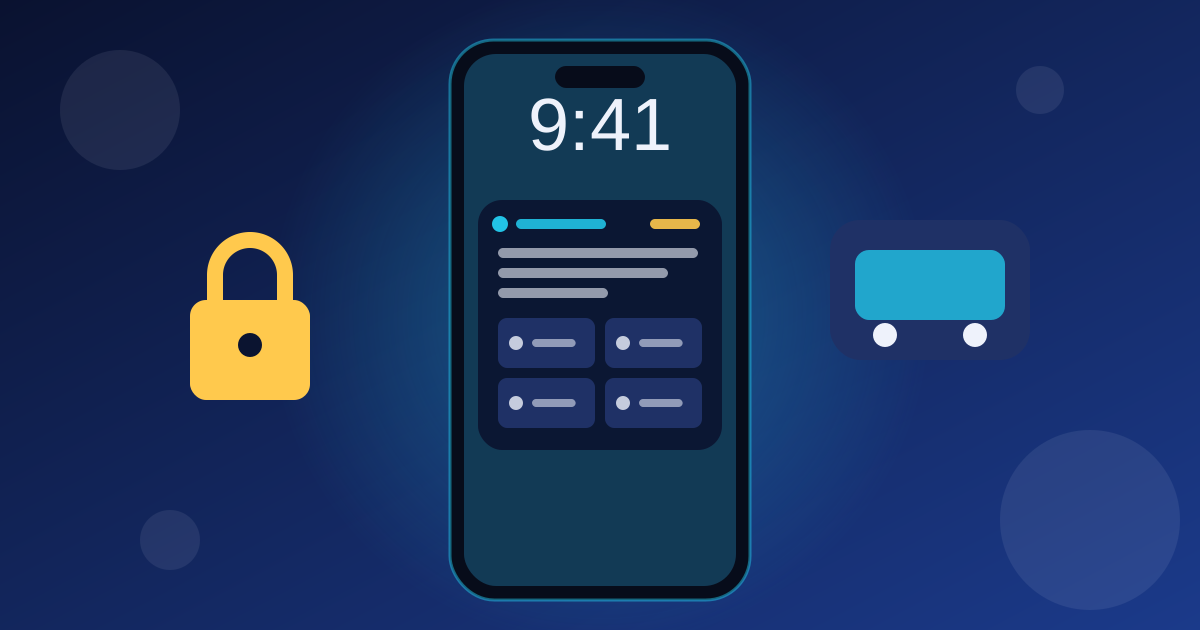
Lock Screen practice starts a short session of 5, 10 or 20 TOEIC Part 5 questions that you answer directly on your Lock Screen. On iPhone it appears as a Live Activity (answering needs iOS 17+); on Android it is a notification with A–D buttons. You see right or wrong instantly and a score at the end.
Start a session
- On the Home screen of the app, tap Lock Screen (or the Lock Screen practice card).
- Choose 5, 10 or 20 questions.
- Lock your phone. The first question is waiting on your Lock Screen.
- Tap A, B, C or D. After a moment the next question appears; the last one shows your score.
Tap End at any time to stop. A session ends by itself after an hour.
Break-time reminders and auto-start
Turn on study reminders and you get a short break-time reminder; tapping it starts a session straight away.
In Settings you can also turn on Continue on the Lock Screen: after you practise in the app, a 10-question session starts automatically when you leave it.
If it doesn't appear
- iPhone: Live Activities must be on for the app (Settings › New Practice for TOEIC Test › Live Activities). The Lock Screen session needs iOS 16.2 or later.
- Android: allow notifications for the app. On Android 13+ the app asks the first time.
- Open any test once so the app has questions ready, then try again.
Frequently asked questions
Do I need to unlock my phone to answer?
No. On iPhone with iOS 17 or later and on Android you answer directly on the Lock Screen. Your answers are saved to your progress and streak.
Which questions are used?
Part 5 questions from the app's tests, in your chosen language for explanations. Wrong answers go to your review list like in the app.
Does it drain my battery?
No. The session only updates when you answer, and it ends automatically after an hour or when you tap End.